Hello Everyone,
In this post, I will show steps to install below SPF Prerequisites:
To see SPF introduction with prerequisites, Click Here!
NOTE:
Run the set with administrator right:

Click Install:

Click Close:

Run the setup with Administration rights:

Monitor the process:

Click Close:

SCVMM Console:
Run the setup with Administration rights:


Select VMM Console only & Click Next:

Click Next:

Click Next:

Click Next:

Click Next:

Click Next:

Click Install:

Click Close:

Provide FQDN of SCVMM Server & Click Connect:

Connected to SCVMM Console:

NOTE: You can install Database instance either on local host or remote server.
Run the setup with Administration Right:

Click on Stand-alone installation link:

Click OK:

Enter Key or use evaluation version (valid for six months):

Click Next:

Click Next:

Click Next:

Click Next:

Select below shown features & click next:

and,

Click Next:

Choose Name Instance & Click Next:

Click Next:

Give SQL Server Service account credentials & Click Next:

Check the SQL Collation & Click Next:

Give SA Account password, Add all SPF & Service accounts & Click Next:

Change the directory path if You want & Click Next:

Click Next:

Click Next:

Click Install:

Click Close once done:

Open SQL Management Console:

Check if IIS is working in local host: Open IIS Manager Console & Click on Browse Link for Default Website:

IIS is running:

Create Local User on SPF Machine:

Add all SPF accounts & local user to Administrator group:

All prerequisites are completed now.
In my next post, I will show You SPF Installation & Post configurations steps.
In this post, I will show steps to install below SPF Prerequisites:
- SQL Server 2012 SP1 Setup
- Microsoft ASP.Net MVC 4 Setup (Click Here to Download!)
- WCF Data Services 5.0 (OData v3) Setup (Click Here to Download!)
- System Center Virtual Machine Manager Console only.
- Create Local User in SPF machine which will be used for SPF registration in WAP Portal.
To see SPF introduction with prerequisites, Click Here!
NOTE:
- Required Roles & Features installation is shown in previous post.
- Add all SPF Accounts to local Administrator Group.
PREREQUISITES INSTALLATION:
Microsoft ASP.Net MVC 4:
Run the set with administrator right:

Click Install:

Click Close:

WCF Data Service 5.0 (OData v3):
Run the setup with Administration rights:

Monitor the process:

Click Close:

SCVMM Console:
Run the setup with Administration rights:

Click Install:

Select VMM Console only & Click Next:

Click Next:

Click Next:

Click Next:

Click Next:

Click Next:

Click Install:

Click Close:

Provide FQDN of SCVMM Server & Click Connect:

Connected to SCVMM Console:

SQL Server Database Instance Installation for SPF Server:
NOTE: You can install Database instance either on local host or remote server.
Run the setup with Administration Right:

Click on Stand-alone installation link:

Click OK:

Enter Key or use evaluation version (valid for six months):

Click Next:

Click Next:

Click Next:

Click Next:
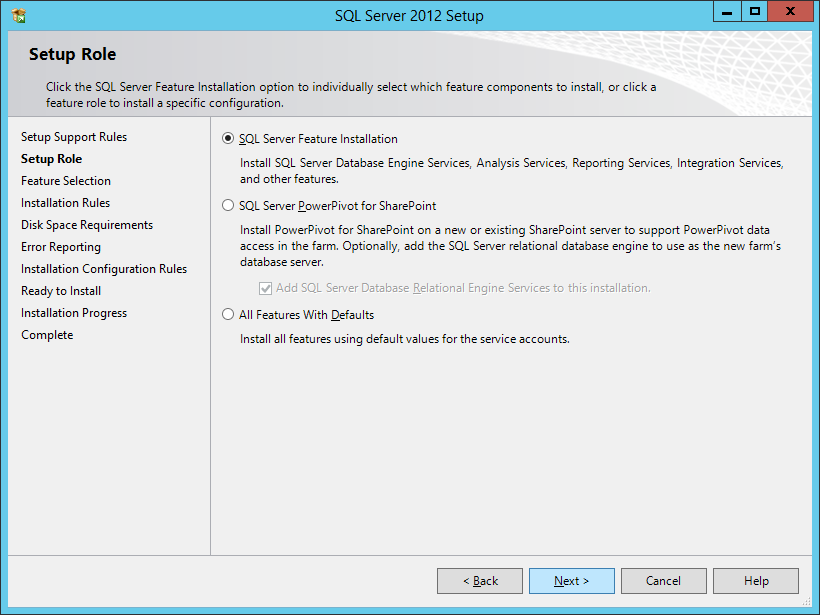
Select below shown features & click next:

and,

Click Next:

Choose Name Instance & Click Next:

Click Next:

Give SQL Server Service account credentials & Click Next:

Check the SQL Collation & Click Next:

Give SA Account password, Add all SPF & Service accounts & Click Next:

Change the directory path if You want & Click Next:

Click Next:

Click Next:

Click Install:

Click Close once done:

Open SQL Management Console:

Other Prerequisites:
Check if IIS is working in local host: Open IIS Manager Console & Click on Browse Link for Default Website:

IIS is running:

Create Local User on SPF Machine:

Add all SPF accounts & local user to Administrator group:

All prerequisites are completed now.
In my next post, I will show You SPF Installation & Post configurations steps.
Share Your feedback or any query!!!
Happy Reading!!!
If You like my post then follow my updates:
Join my Facebook group for updates on trending technologies/technical references/issues etc:

2327F148BC
ReplyDeleteGörüntülü Sex
Ücretli Show
Ücretli Şov
ReplyDeleteSosyal medya hesaplarınızın görünürlüğünü arttırmak ve takipçi sayınızı hızlıca yükseltmek istiyorsanız güvenilir ve uygun fiyatlı çözümler arayabilirsiniz. Bu noktada en ucuz smm panel seçenekleri size büyük avantajlar sağlayabilir. Uygun fiyatları ve kaliteli hizmetleri ile dikkat çeken bu panel sayesinde sosyal medya stratejilerinizi daha etkili hale getirebilirsiniz. Bu nedenle ihtiyaçlarınıza en uygun olanı seçmek için detaylı araştırma yapmanızı öneririm.
3A4979D2
ReplyDeleteAdıyaman
Maraş
Karaman
Çorum
Amasya
Bitlis
Nevşehir
Karabük
Bartın