Hello Everyone,
In this post, I will explain some of the other tasks which can be performed using hyper-v console like creating blank VHD, adding disk to VM, checkpoint etc...
PART 1: To see Hyper-V Features, Click Here!
PART 2: To see Hyper-V Installation Process & Console Overview, Click Here!
PART 3: To see Hyper-V Network Configuration Concept & Process, Click Here!
PART 4: To see Hyper-V Console Overview & Configuration changes, Click Here!
PART 5: To see Hyper-V Creating VM, Export & Import VM, Click Here!
PART 6: To see Disaster Recovery Configuration & Testing using Hyper-V Replica, Click Here!
PART 7: To see Expanding IDE controller VHD size, Click Here!
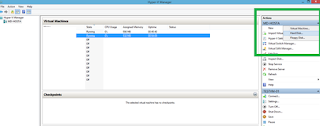




Open Hyper-V Console & Click on Edit Disk from Action Pane:

Click Finish:

Click on Inspect Disk in Action Pane to see:

Right click on VM & then Click on Checkpoint:

Process started:

Completed:

Based on the no. of disk, it will create .avhdx files in folder:

Before taking checkpoint, I had created many folders in VM Desktop so I will delete them all:

All Folders deleted now:

Right click on Checkpoint & Click Apply:
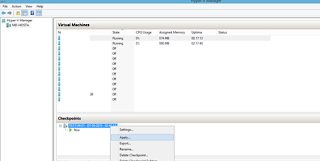
Click Apply:

Saving the changes in VM with old settings:

Once done, Open VM & See all folders will be there as it is:

Same way if You want to delete checkpoint then right click on it and click on either delete checkpoint or delete checkpoint sub-tree.
This is all about some basic tasks which can be performed.
Almost I have covered all hyper-v related tasks in all posts. If anyone have any query then feel to to write Your query on post.... I will revert ASAP.
Now, I will Post on Hyper-V 2016 features... :)
In this post, I will explain some of the other tasks which can be performed using hyper-v console like creating blank VHD, adding disk to VM, checkpoint etc...
PART 1: To see Hyper-V Features, Click Here!
PART 2: To see Hyper-V Installation Process & Console Overview, Click Here!
PART 3: To see Hyper-V Network Configuration Concept & Process, Click Here!
PART 5: To see Hyper-V Creating VM, Export & Import VM, Click Here!
PART 6: To see Disaster Recovery Configuration & Testing using Hyper-V Replica, Click Here!
PART 7: To see Expanding IDE controller VHD size, Click Here!
SOME OF THE OTHER TASKS WHICH CAN BE PERFORMED USING HYPER-V:
There are some of the below tasks which can be performed via Hyper-V Console:
Create Blank VHD:
Open Hyper-V console, on right hand side in Actions pane, Click on New & then Click on Hard Disk:
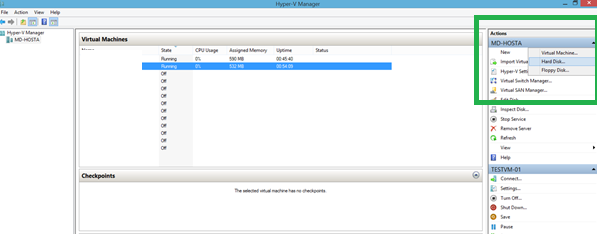
Choose format: VHD or VHDX:

Choose Type:

Give Name & Path for VHD:

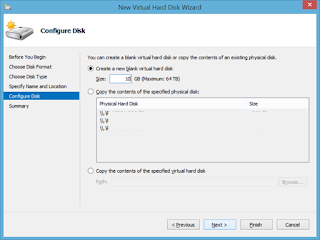
Define Size:
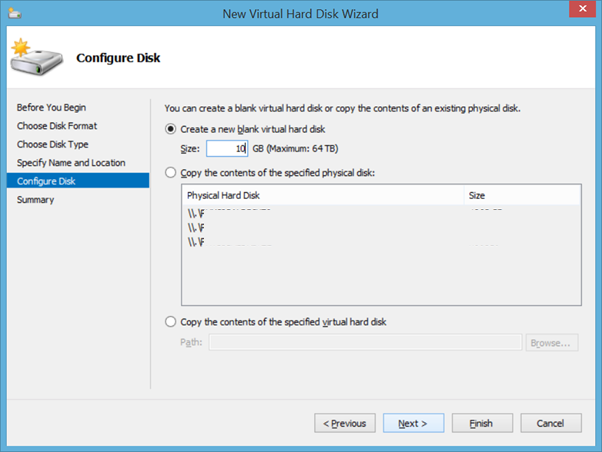
Click Finish:

Wait for progress:
Completed, You can now add this blank disk to VM:

Add Blank VHD to VM:
Right Click on VM & then Click on Settings:

NOTE: If VM is running then You can not add disk so make sure VM is off:
Select Hard Drive & Click Add:

Click on Browse:


Select Disk:
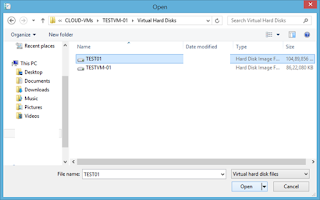

Click Apply & OK:


Start the VM & Open Disk Management (diskmgmt.msc):


Disk is Added successfully:


Expand VHD Online:
Open Hyper-V Console & Click on Edit Disk from Action Pane:

Select Disk to Expand:


NOTE: To Convert Disk from VHD to VHDX or vice versa, You need to power-off the VM.
Click Next:

Click Next:

Click Next:


Give the max size which You want to expand: (I have give 15 GB, 5GB additional size):


Click Finish:

Wait for progress:

Open VM and Check in Disk Management, 5 GB is added online:


Inspect Disk:
Click on Inspect Disk in Action Pane to see:
- Disk Format
- Disk Type
- Disk Current File Size
- Maximum Disk Size

See the Virtual Hard Disk Properties:


Checkpoint (In Windows Server 2012 R2) & Snapshot (In Windows Server 2012):
Good feature of hyper-v - mostly used for DEV & TEST Environment where if anything goes wrong then You can revert it to previous stage using checkpoint backup. This creates an .avhdx backup file.
NOTE: If You created multiple checkpoints then delete checkpoints in reverse sequence... EX: If checkpoint is created like A, B, C, D then Deletion process will be D, C, B, A.
Right click on VM & then Click on Checkpoint:

Process started:

Completed:

Based on the no. of disk, it will create .avhdx files in folder:

How to Apply Checkpoint?
Before taking checkpoint, I had created many folders in VM Desktop so I will delete them all:

All Folders deleted now:

Right click on Checkpoint & Click Apply:

Click Apply:
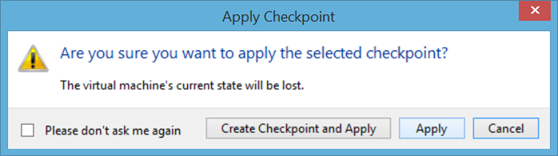
Saving the changes in VM with old settings:

Once done, Open VM & See all folders will be there as it is:

Same way if You want to delete checkpoint then right click on it and click on either delete checkpoint or delete checkpoint sub-tree.
This is all about some basic tasks which can be performed.
Almost I have covered all hyper-v related tasks in all posts. If anyone have any query then feel to to write Your query on post.... I will revert ASAP.
Now, I will Post on Hyper-V 2016 features... :)
Happy Reading!!!
If You like my post then follow my updates:
Join my Facebook group for updates on trending technologies/technical references/issues etc:

2A3038AE43
ReplyDeletehacker bul
hacker arıyorum
tütün dünyası
hacker bulma
hacker kirala
D6176477
ReplyDeleteşırnak esçort
esçort bayan afyon
esçort bayan bilecik
ağrı esçort
karesi esçort
esçort bayan kayseri
yozgat esçort
esçort yalova
esçort niğde
70EC8A8C
ReplyDeleteLapseki
Bismil
Gümbet
Batıkent
Hopa
Çarşamba
Payas
Karasu
Ezine
C9E99666
ReplyDeleteYenişehir
Tepebaşı
Soma
Dikili
Akçay
Silivri
Yüreğir
Osmangazi
Seyhan
79F02C58
ReplyDeleteCanik
Güllük
Ayaş
Mezitli
Dilovası
Aktepe
Karasu
Ünye
Buharkent